


Picture Editor
4.889.00 Reviews
App Specs
- Version
- 2.1.2
- Updated On
- License
- Free
- Downloads
- 1,000,000+
- Developer
- Galaxy studio apps
- Categories
- Beauty
- Platform
- Android, iOS
Screenshots
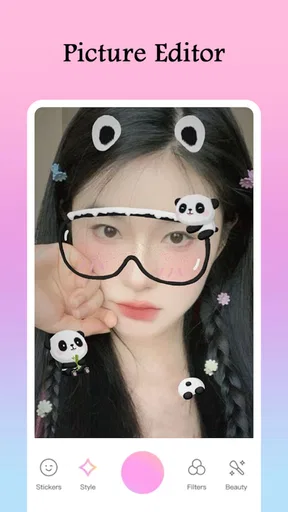
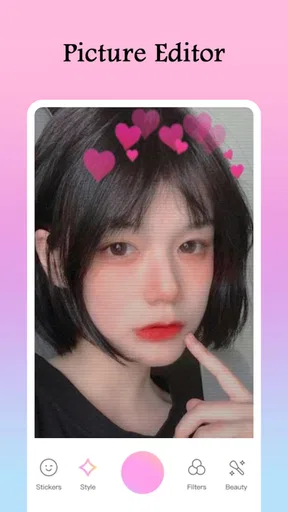
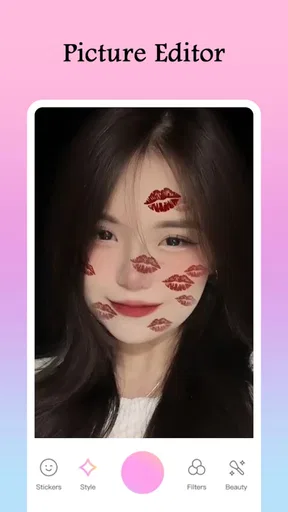
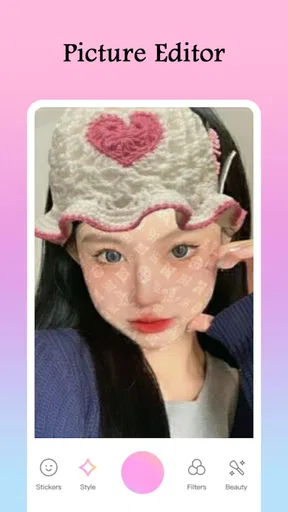
 Analysis by AppCompare
When I choose a photo editor, I first ask what I want to finish: a quick, playful post or a careful image that needs consistent, precise adjustments. Picture Editor is aimed more at the first kind of job, though its listed toolset also points toward some hands-on editing. That mix can be useful, but it makes the important question less about how many effects are available and more about whether the app suits the way you actually work.
Start with the kind of edit you need
For a casual photo, speed matters. I want to crop, change the mood, add a little personality, and get back to sharing without learning a complicated workflow. For a portrait I plan to print, a product image that needs repeatable colors, or a batch of photos that should all match, precision and consistency matter more. Those are different needs, and no single editor is automatically best for both.
This is a free beauty app from Galaxy studio apps, with a 4.8 average from around 16 thousand ratings and more than a million installs. It is rated for everyone. Those details suggest that it has found an audience, but popularity alone cannot tell you whether its editing style fits yours; I would judge it by the tools you will use regularly and how much control you need over the result.
Where a quick, creative editor earns its place
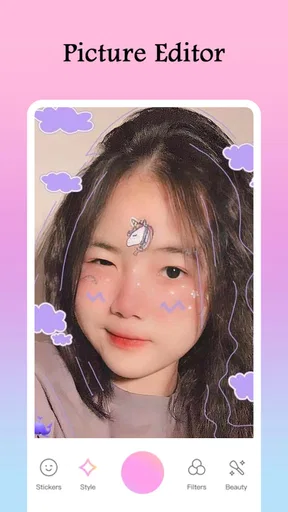
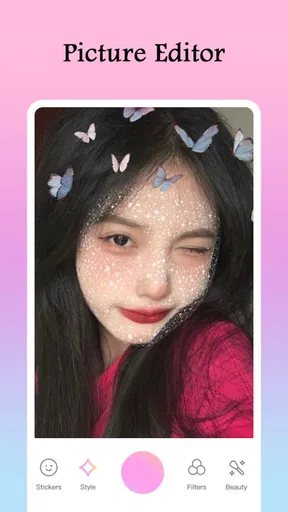
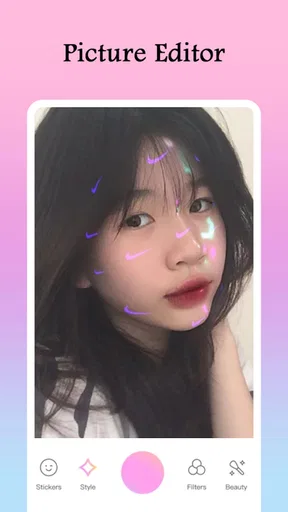
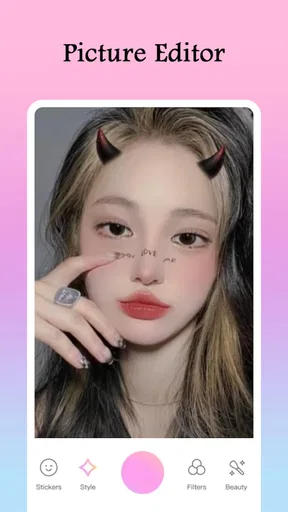
The strongest case for Picture Editor is the combination of filters, stickers, and text with familiar adjustments such as cropping and rotation. If your usual goal is to make a selfie, pet photo, or snapshot from a day out feel more finished, that mix can spare you from moving between a basic photo app and a separate design tool. A filter can establish the mood, while a small crop or caption can make the image feel intentional.
There is a practical way to keep that creative freedom from turning into over-editing: make the crop and basic light or color decisions first, then try filters, and add stickers or text last. I find it easier to judge whether a decorative effect helps once the picture itself is already framed well. Keeping a copy of the original before experimenting is also sensible, especially when you are trying several looks and may want to return to a natural version.
Curves, blending modes, and a healing tool are described among its editing options, which gives more ambitious users a reason to explore beyond preset looks. These controls can be useful when a filter gets close but not quite right, or when a small distraction draws attention away from the subject. They also take more judgement than a one-tap effect: subtle changes are often more convincing than pushing every control to its limit.
A realistic workflow for a busy day
Imagine I have taken a group photo at lunch and want to share it before the conversation moves on. I would first crop out unused space, check that everyone is still comfortably in frame, and test a couple of filters rather than applying one automatically. If the picture feels too decorated, I would remove the extras and keep only a modest color treatment or a short caption. That quick sequence is more likely to produce a readable image than adding several stickers just because they are available.
Worth Reading Before You Choose

EA SPORTS FC Mobile 26 Is a Bigger Football Game, but It Takes Time

Flipboard Shows What News Apps Must Do Beyond the Feed

Switching to Android Auto Means Rethinking Your Driving Routine

Google Calendar Makes a Crowded Week Easier to Manage

Ludo King Makes the Most of the Minutes Between Plans

Baby Panda World Brings Quick Play to Modern Phones, but Its Game Library Feels Busy
For a small business owner posting an occasional behind-the-scenes picture, the text and sticker options may also be handy for a simple announcement. I would treat them as finishing touches, not as a substitute for a dedicated layout tool: a longer promotion, a menu, or a set of branded posts usually benefits from templates and consistent spacing. The editor makes more sense when the photo remains the main event.
Where alternatives may fit better
Compared with a phone’s built-in editor, this app looks more oriented toward expressive finishing, particularly when you want decorative elements alongside photo adjustments. The built-in option can still be the better choice for a quick straighten, crop, or restrained correction when you do not need stickers or text. It is already part of the ordinary photo workflow, so opening another app only pays off if its creative tools add something you will actually use.
At the other end, a professional photo editor is a better match when you need detailed control, repeatable results across a set, or a careful process for client work. A design-focused app may be more convenient for posters, layered text layouts, and reusable social graphics. Picture Editor sits between these approaches: it appears suited to casual editing with some more involved tools, but I would not choose it solely on the assumption that a long tool list will replace a specialist workflow.
One useful test is to edit the same image in your current app and here, then compare more than the filter. Check whether you can get the crop you want, make a small correction without spoiling the subject, and add text that remains legible on a phone screen. If the second app saves you steps or gives you a look you prefer, it has earned a place. If you keep returning to the first app for control or simplicity, there is little reason to switch out of habit.
Cost, commitment, and the small print
The app is free to download, with in-app purchases ranging from $0.99 to $99.99 per item. That wide range is worth keeping in mind before committing to a purchase: I would try the free editing path first and only pay after identifying a specific feature or item I genuinely need. For occasional photo touch-ups, a purchase may not be necessary; for someone who edits often, the value depends on whether the paid option improves a repeated task rather than merely adding more choices.
Its current version is 2.1.2, and it requires Android 5.0 or later. If you are deciding whether to move your regular editing routine over, consider the time cost too. You may need to learn where the tools sit, test which effects match your taste, and establish a way to keep original photos safe. That is a small hurdle for a casual project, but it can become frustrating if you need a fast, predictable process for many images.
What to check before you settle on it
Before editing an important photo, try a low-stakes image and check how the saved result looks at the size you intend to use. For a social post, inspect it on your phone; for a print, do not assume that a pleasing screen preview alone guarantees the finish you want. The app’s saving options are presented as flexible, including choices for different uses, but the sensible habit is to confirm the output suits your particular destination before relying on it for a final copy.
I would also test the healing tool on a minor distraction rather than expecting it to repair a complex area perfectly. Tools of this kind tend to work best when the unwanted mark is small and the surrounding texture is simple. If the correction draws more attention than the original blemish, undo it and leave the image alone. Likewise, text and stickers are most effective when they do not cover faces or important details.
Picture Editor is a reasonable fit for someone who wants one place to try filters, decorative touches, and a few more hands-on adjustments without turning a quick edit into a technical project. It is less compelling if your priority is restrained, consistent image correction or polished graphic layouts. I would give it a trial on everyday photos, keep the original until I am happy with the saved result, and let actual use—not the number of available effects—decide whether it deserves a spot in my routine.
Hey there, photo enthusiasts! Today, I'm diving into the colorful world of the Picture Editor app, a handy tool for both Android and iOS that promises to turn your ordinary snapshots into extraordinary masterpieces. Let's see if it lives up to the hype!
First Impressions and Interface
So, right off the bat, Picture Editor greets you with a super sleek and intuitive interface. It’s like they knew we didn’t want to spend ages figuring out how to navigate the app. Everything is laid out clearly, and the icons are self-explanatory, so you can dive right into editing without a hitch.
One thing I loved is the quick access toolbar at the bottom. It’s packed with all the essential features you need, from cropping and rotating to more advanced options like curves and selective editing. Honestly, it feels like having a mini Photoshop in your pocket, but without the intimidating vibe!
Features That Stood Out
Now, let’s talk features because this app isn’t just about basic edits. Oh no, it’s got some serious tricks up its sleeve!
- Filters Galore: Who doesn’t love a good filter? Picture Editor offers a plethora of filters that can completely change the mood of your photos. Whether you’re going for a vintage vibe or a vibrant pop of color, there’s something for everyone.
- Advanced Editing Tools: For those of you who like to get into the nitty-gritty, the app provides tools like curves, blending modes, and even a healing tool to touch up those tiny imperfections. It’s like magic, but real!
- Text and Stickers: Want to add a personal touch? The text tool is super versatile, with various fonts and colors to choose from. Plus, the sticker collection is both fun and extensive, allowing you to add a playful element to your photos.
User Experience
Using the app is a breeze, and I was impressed by how smoothly everything runs. Even while applying multiple edits, the app didn’t lag or crash, which is a huge plus in my book. The developers clearly put a lot of thought into optimizing performance, and it shows.
Another cool feature is the built-in tutorial snippets. If you’re new to photo editing or just feeling a bit rusty, these quick tips are a lifesaver. They pop up right when you need them, offering guidance without interrupting your creative flow.
Sharing and Saving
Once you’ve crafted your masterpiece, sharing it is a snap. The app integrates seamlessly with social media platforms like Instagram, Facebook, and Twitter, so you can show off your work to the world with just a tap.
Saving options are also quite flexible. Whether you want to save in high resolution for printing or a smaller size for web use, Picture Editor has got you covered. It’s nice to have these options, especially if you're conscious of storage space on your device.
Final Thoughts
In conclusion, Picture Editor is a fantastic tool for anyone looking to elevate their photo editing game. It’s packed with features yet remains user-friendly, making it perfect for beginners and seasoned editors alike. I can confidently say that it’s worth a download if you’re serious about your snaps.
So, if you’re ready to take your photos from drab to fab, give Picture Editor a try. Trust me, you won’t regret it. And who knows, you might just unleash your inner artist!
Pros
- Intuitive interface for easy editing
- Wide range of editing tools available
- Supports high-resolution exports
- Regular updates with new features
- No watermarks on final images
Cons
- Occasional app crashes reported
- Some features behind a paywall
- Ads can be intrusive at times
- Limited free cloud storage
- Slow performance on older devices
FAQs for Picture Editor
What features does the Picture Editor app offer?
The Picture Editor app provides a wide range of features including basic tools like cropping and resizing, advanced filters, and special effects. Users can also enjoy layers, text overlays, and a selection of brushes for detailed editing. Additionally, the app supports high-resolution exports for professional-quality results.
Is the Picture Editor app free to use?
The app is free to download, offering a range of basic features at no cost. However, it includes in-app purchases for premium tools and filters. A subscription model is also available, which unlocks advanced features and removes ads, enhancing the overall user experience.
Does Picture Editor support all image formats?
Picture Editor supports a variety of popular image formats including JPEG, PNG, and TIFF. While it handles most common formats, compatibility with RAW files may vary. Users working with specialized formats should check specific compatibility details within the app settings or support documentation.
Can I use Picture Editor offline?
Yes, Picture Editor can be used offline, making it convenient for editing on-the-go without an internet connection. However, some features, such as cloud storage access and online tutorials, require an internet connection. Offline mode ensures users can still achieve high-quality edits without interruption.
Is Picture Editor suitable for professional use?
Picture Editor is designed with both beginners and professionals in mind. It offers advanced editing tools comparable to desktop software, making it suitable for professional photographers and designers. The app supports high-resolution exports and features like layer management, which are essential for professional-grade work.


